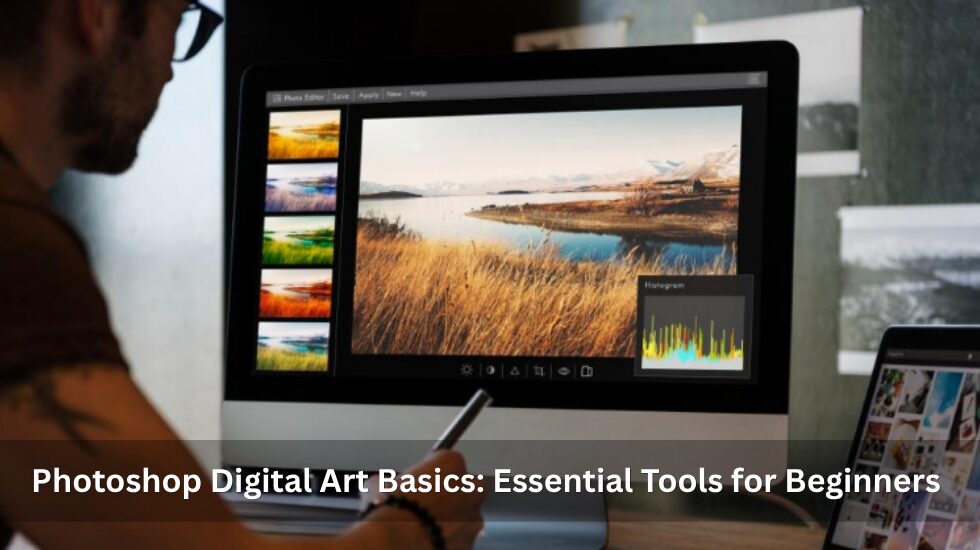
The Adobe Photoshop interface might be daunting for beginners when it feels like all icons, panels, and keyboard shortcuts require immediate attention. There is no need for beginners to know everything about the software right away. Instead, they should focus on mastering basic tools that are used for drawing, painting, editing, and composing. The list of basics listed below could serve as a good starting point for artists who want to create a more organized and productive workflow.
Build a Strong Knowledge Base First
Before exploring complex effects, make sure that you have an understanding of the Photoshop layout, canvases, layers, color palette, and navigational capabilities. Being familiar with your tools and knowing what each panel does will help when you explore more advanced techniques later on. It is also wise to study the basics of graphic design at this point since knowledge of balance, contrast, hierarchy, and emphasis can help you make decisions about the composition.
Rather than copying advanced works from the beginning, start with small projects. An illustration can be used for understanding how layers function, how selections can be made, and how it all influences the final result.
Learn How to Control Layers
Layering is one of the most essential functions in Photoshop. This feature allows digital artists to isolate their sketches, colors, shadows, highlights, textures, and backgrounds in order to manipulate each part individually. Start by familiarizing yourself with basic techniques such as adding, renaming, duplicating, hiding, locking, and changing the position of layers.
The use of layer groups helps in keeping a larger project organized, while using opacities helps in combining various visual components. Once you get used to the basics, you should try exploring the blending modes in Photoshop since they can provide many interesting results in manipulating colors and tones. This is especially beneficial for digital painting.
Master the Brush Tool
It is necessary to learn more about the Brush Tool since you will control the lines, edges, texture, and colors through it. You need to play around with the brush size, hardness, spacing, opacity, and flow without downloading too many brushes right away. Soft brushes help you make smooth transitions, while hard brushes work best with defined forms and details.
With a pressure-sensitive tablet, you can feel like you are painting with a real brush, as the lines get thicker or thinner depending on how hard you press. Experiment with different strokes, gradients, outlines, and textures. You can even adjust existing brushes to get certain effects according to your taste.
Experiment With Different Programs
Photoshop is a very strong tool; however, it doesn’t always have to be the sole software in your artist’s arsenal. Experimentation with other programs will give you the opportunity to figure out what kind of interface, brush system, and workflow feels the most comfortable to you. For instance, Procreate is a widely used program by digital artists who like to paint on the tablet directly.
The comparison of different apps will show the distinctions in brushes, gestures, layers, animations, and illustration tools. Learn the software first, then invest in unique brushes for Procreate that mimic interesting real-life textures and complement your creative process well. Experimentation should help you understand your needs and preferences.
Understand Selections and the Pen Tool
Selections enable you to focus on particular parts before modifying their colors, shapes, brightness, or textures. There are many methods available in Photoshop for making selections, with some tools especially suited for quickly isolating objects and others for more refined edges.
New users should start by making selections of simple shapes, and then progress towards complex ones. The edge can be softened with feathering, while refinement tools can help in obtaining clearer edges for complex objects like hair and foliage. The Pen tool should not be overlooked either. Though difficult to learn initially, it enables the creation of accurate paths and shapes that are helpful in making clear illustrations and graphic designs.
Use Adjustment Layers for Smarter Editing
Adjustment layers do not edit the original file itself, but instead just make changes to the color, luminance, contrast, and many other visual attributes. For that reason, they are especially useful when you are new to Photoshop, as you can always come back and change any choice that you made.
It is a good idea to start with some of the basics like Brightness/Contrast, Levels, Curves, Hue/Saturation, and Vibrance adjustment layers. Even though Curves may seem scary at first, making basic curves will already help you achieve a better balance of tones and mood.
Practice Retouching and Texture Techniques
Retouching tools provide a beginner artist with an opportunity to learn how to be precise. For instance, the Spot Healing Brush is very good when you need to correct a minor defect fast, while the Healing Brush helps to incorporate adjacent information into a corrected spot.
As for the Clone Stamp tool, the user gets an opportunity to control the process since it enables them to copy pixels from one point to another. These tools are good for manipulating images, but they can also be very useful for digital artists who wish to improve the quality of their painting, clean up texture, or even duplicate the details they like.
Develop Efficient Saving and Workflow Habits
Another good practice in digital art is properly protecting and exporting your creation. If you want to save your files with layers, choose PSD format. When your artwork is complete and you need to export it, you can use JPEG, PNG (transparency will be useful), or TIFF (high quality is needed).
Choose the proper dimensions and resolution depending on the final goal, not randomly choosing any setting. It might be helpful to learn several keyboard shortcuts that can help you work faster with layers, changing brush size, zooming, and navigating your canvas. The repetitive use of shortcuts makes them natural actions, which allows you to concentrate better on your art piece.
Understanding Photoshop as an artistic tool requires knowledge of just a few important tools rather than learning all of its features by heart. The way to learn Photoshop is through constant practice, exploration, and trial and error. After mastering these basics, using the program becomes much easier.